Email Services


Mailbox

A mailbox is the most common email option. Email sent to an address such as yourchoice@yourdomain.com is stored at Domain Support until it is checked using an email program such as Eudora Pro, Netscape Mail, Microsoft Internet Explorer, or any of the hundreds of other POP3-compliant email programs.

Use this option if you are interested in keeping your Domain Support mail account separate from other email addresses you have (i.e. to separate your personal email from your work email), or if you wish to receive email and do not currently have a mailbox at home or work.

Domain Support provides step-by-step instructions on how to configure your current email software to check email from your Domain Support mailbox.

Many users choose to create more than one mailbox on an existing domain. For example, you may wish to create mailboxes for each of your employees, of the form ann@yourdomain.com, bob@yourdomain.com, etc. Each mailbox is its own mailbox, with its own username and password, so that Ann (in the above example) cannot read Bob's email, and vice versa.

Maximum size of a single message

25MB

Maximum messages received per day

5,000

POP mailbox limit

35MB

POP overflow limit

300MB


POP mailboxes are limited to 35MB in size. Once a POP mailbox is full, delivery of additional incoming mail will be "deferred" into an overflow mailbox. When the size of the POP box is reduced (by downloading and removing mail from the server), overflow mail will automatically be delivered into the mailbox; typically within 30 minutes.

To add a mailbox


Hosting service is required to add a mailbox. Please visit the Hosting section within your account to add a new hosting service.


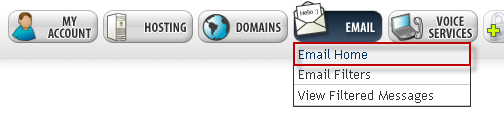
When logged into your account, select the Email option from the navigation bar then choose the option for Email Home.


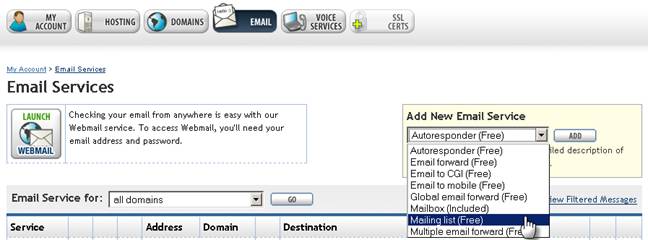
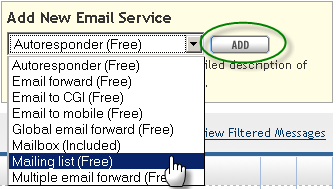
Locate the Add New Email Service box then select Mailbox from the drop down menu.


Once you have made your selection, click the Add button.


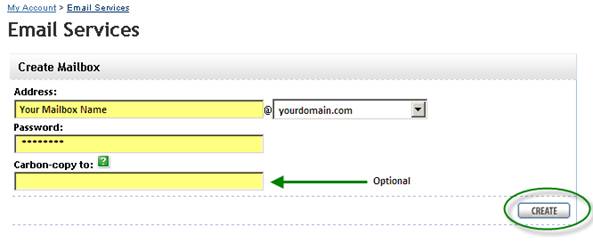
Enter the mailbox information into the appropriate fields:

Address

The address field is where you will enter the mailbox name, or what appears before the @ sign in your email address.


Password

Passwords must contain at least 6 characters and be alpha-numeric.


Carbon-copy to

You can carbon-copy incoming email to an additional destination (for example, another mailbox) by providing an address in this field.


Once your mailbox has been created, it will appear on the main Email Services page.


Icons


Documentation


WebMail


Spam Filters


Learn how to configure your mailbox to an email client by clicking here.


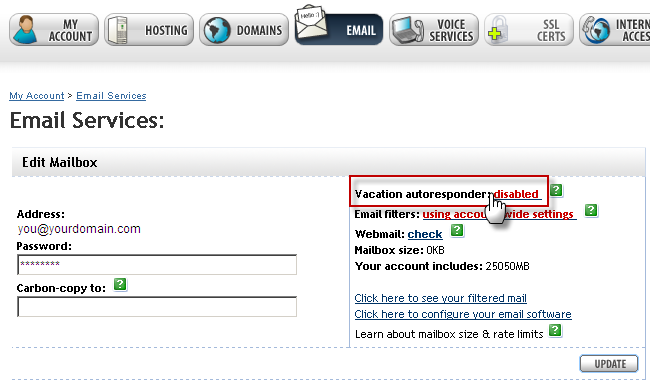
Vacation Autoresponder

Going on vacation? Let those that email you know you’ve stepped out for a while by creating a vacation autoresponder. When anyone sends you a message during the time the vacation autoresponder has been enabled, they will receive message with your information.


Select the Edit button to the right of your mailbox.


Select the “disabled” link.


Email forward

An email forward is also known as an email alias. Email which arrives to an email forward such as yourchoice@yourdomain.com is instantly forwarded to a destination of your choice. This destination can be any valid email address, whether it is an account at Domain Support, an account at your ISP, etc. The sender will not know that the email is being forwarded. For example:

someone@yourdomain.com -> youremail@yourisp.com
another@yourdomain.com -> youremail@yourdomain.com


This option is often used to create several email address which ultimately forward to the same destination. A company might use email forwards such as sales@yourdomain.com, support@yourdomain.com, and info@yourdomain.com, all of which would forward to the appropriate employee's mailbox.


Global email forward

A global email forward or "star" email forward, is the "catch all" of email options. It forwards all email addressed to your domain (i.e. ***@yourdomain.com) to a single mailbox, whether it be a mailbox at Domain Support, or your dial-up mailbox.

Normally, if someone sends email to an email address which doesn't exist (perhaps due to a mis-spelling), the message is returned to the sender with a "User Unknown" error message. A global email forward allows you to receive such email, even if the "to" address does not exist at your domain.

You can use a global email forward in conjunction with other Domain Support email options. In this case, all other email options take precedence, such that the global email forward in used only when necessary.

Advanced users can use a global email forward, in conjunction with 3rd-party software, to collect all mail addressed to a given domain, and then redistribute it to several employees on an intranet.


Autoresponder

Autoresponders send a preformatted reply when mail is sent to a certain address. Samples and a detailed explanation are provided here.


More:

Multiple email forward

Email-to-cgi gateway

Mailing list

Email-to-mobile gateway

Email filters