In order to use our free Value Added Services, your domain must point to our nameservers. Below you will find instructions how to make this update.
To update your domain nameservers, please follow the instructions below:
1. Login to your account by clicking here.
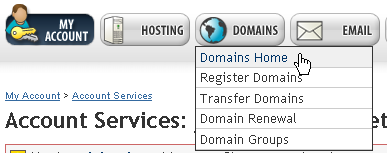
2. Select or click the Domains option from the navigation bar then choose Domains Home from the drop down menu.
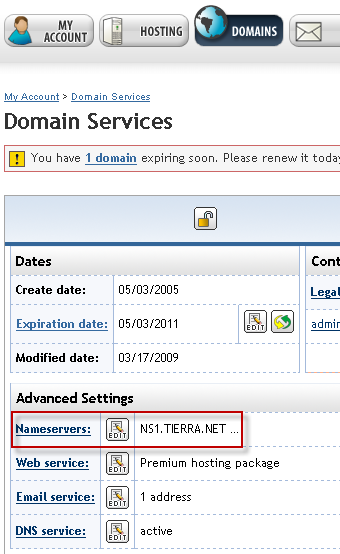
3. Locate the Advanced Settings section on the Domain Services page. The Nameservers section can be found in this box.
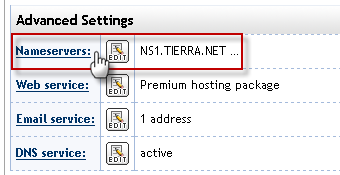
4. Click the Nameservers link or the Edit button to the right of the Nameservers link to proceed.
5. Select the domain name for which you will be changing the nameservers. If you need to make the change on more than one domain in your account, click the Additional Domains link.
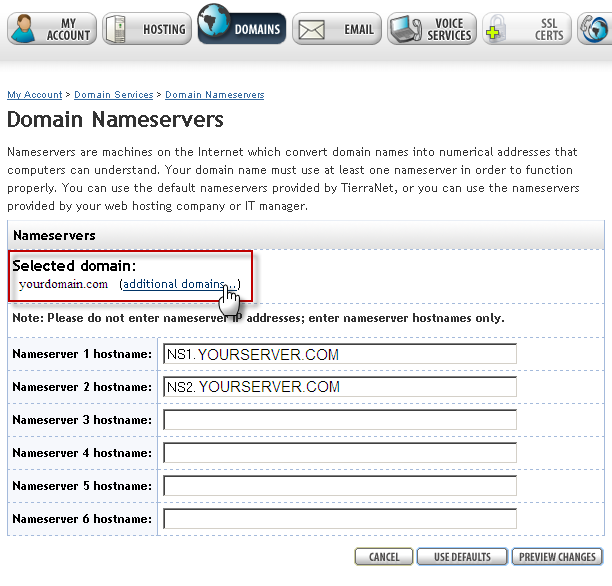
After your domain(s) have been selected, please select the Use Defaults button. The nameservers in the text boxes will change to reflect our default nameservers.
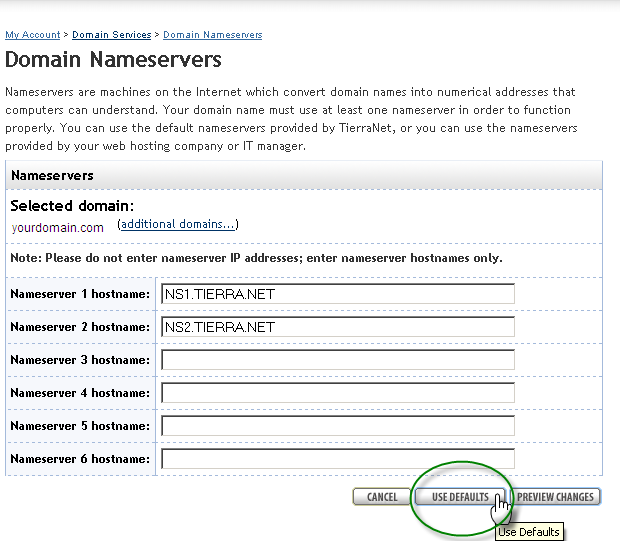
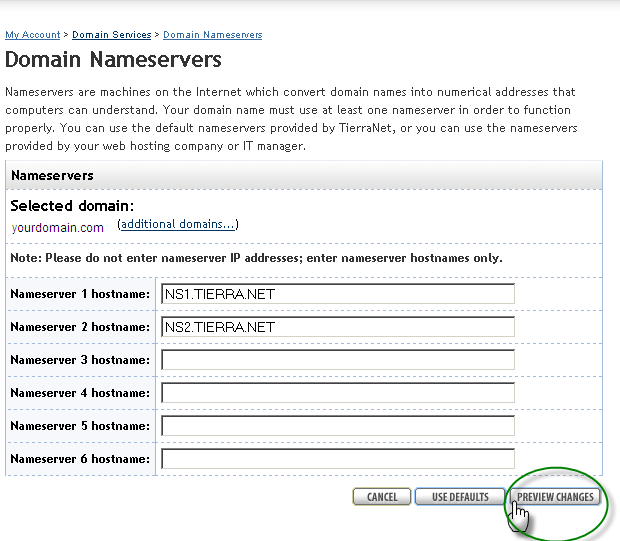
After clicking the Use Defaults button, select the Preview Changes button.
Then, review your changes and click the Confirm Changes button.
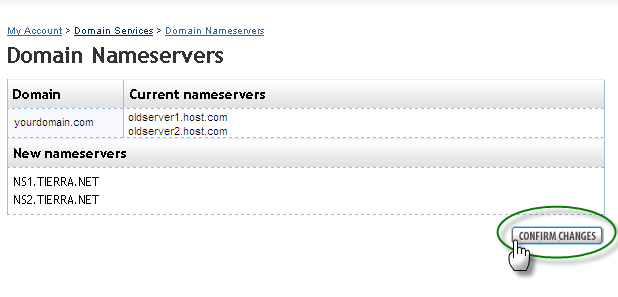
Nameserver changes take 24 to 48 hours to propagate.